


Free White Border Maker
Frame a photo for a square or portrait post without cutting off the edges.
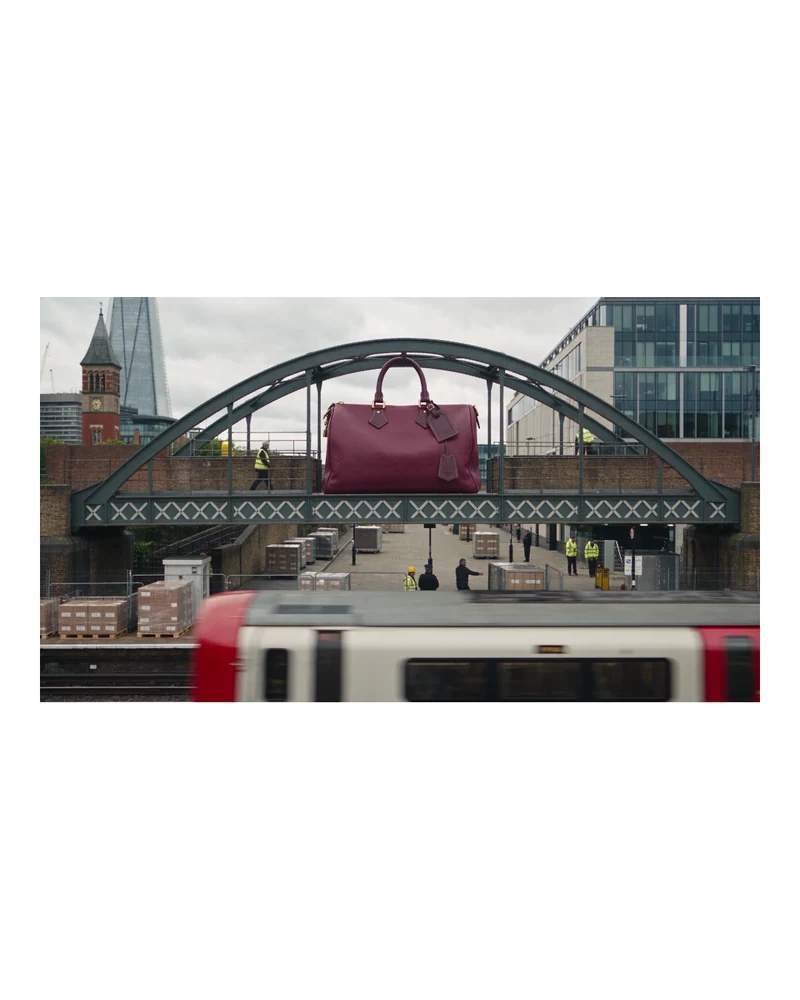
How do I add a white border without cropping my photo?
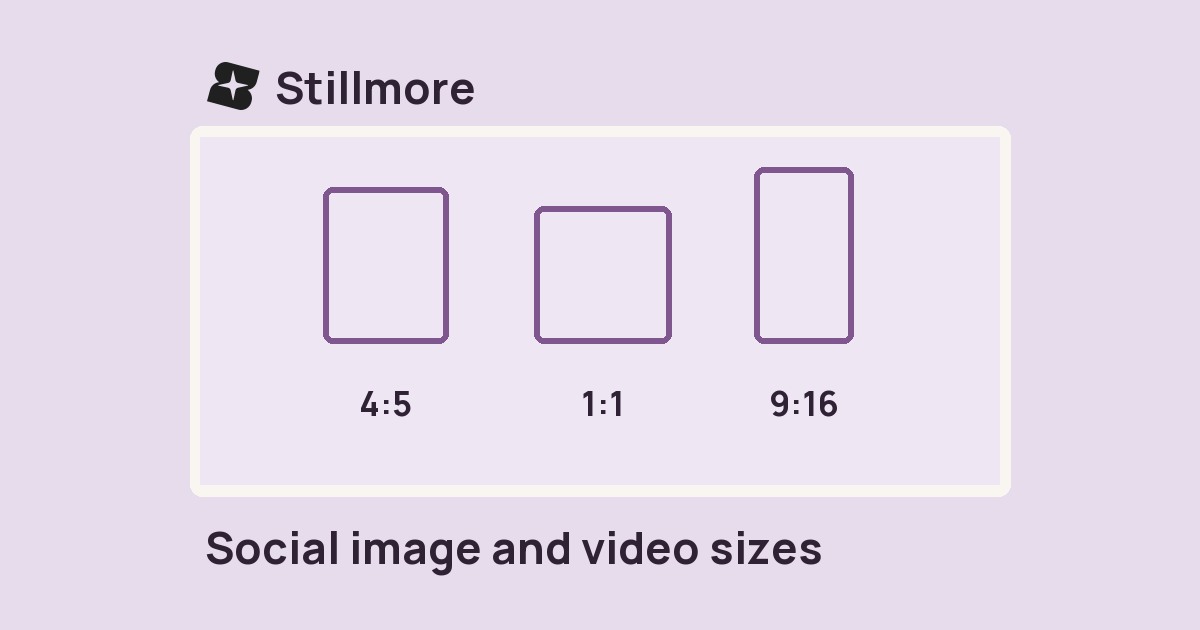
Choose a photo, select a square or 4:5 canvas, then set the border width. Stillmore fits the whole photo inside the frame and fills the remaining space with white or your chosen colour. Save a 1080 × 1080 or 1080 × 1350 PNG.
Worked example
A landscape photo in a portrait frame
The original shot stretches across the bridge. A white border keeps both ends visible in the 4:5 export. The finished PNG measures 1080 × 1350 pixels.
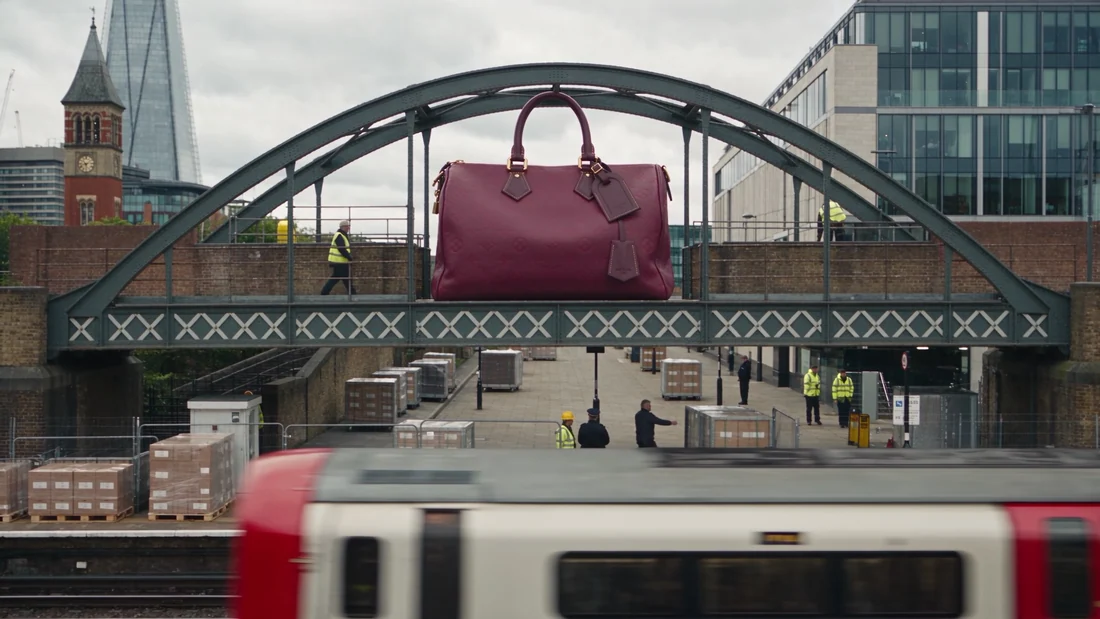
Keep the label in the frame
Choose a photo
Start with a product shot, a landscape or a portrait. The tool fits all four edges inside the frame.
Set the canvas
Pick square for a grid or 4:5 for a portrait layout. Set the border width and choose white or a brand colour.
Save the PNG
The export measures 1080 × 1080 or 1080 × 1350 pixels. Your original stays on your device.
White border FAQ
Will it crop the photo?
No. The whole image is scaled proportionally. A landscape on a portrait canvas has more space above and below.
How do I set my brand colour?
Choose Background, then pick your colour. Transparent areas use that colour too.
Why are two borders wider?
The extra space accounts for the difference between the photo and canvas proportions. Both opposite edges are balanced.
Does my image leave this device?
No. Framing and PNG export run in your browser.
Related tools
Stillmore Inspiration
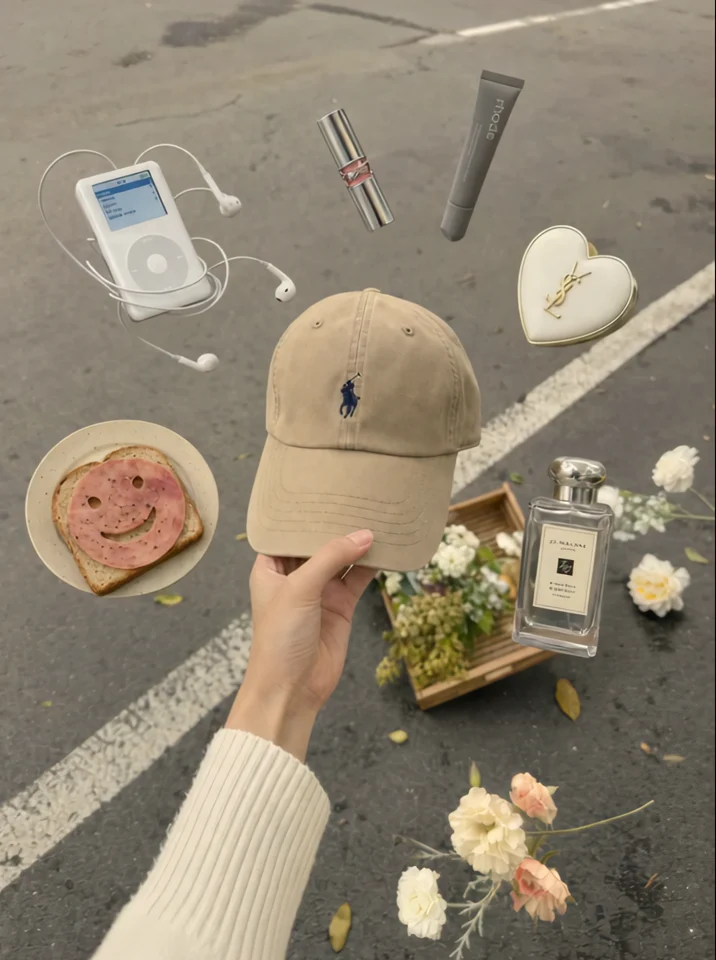
Float in Hand
Float in Hand gives one item a central position with the others arranged around it. It is a useful reference when deciding which product must survive your tightest crop.
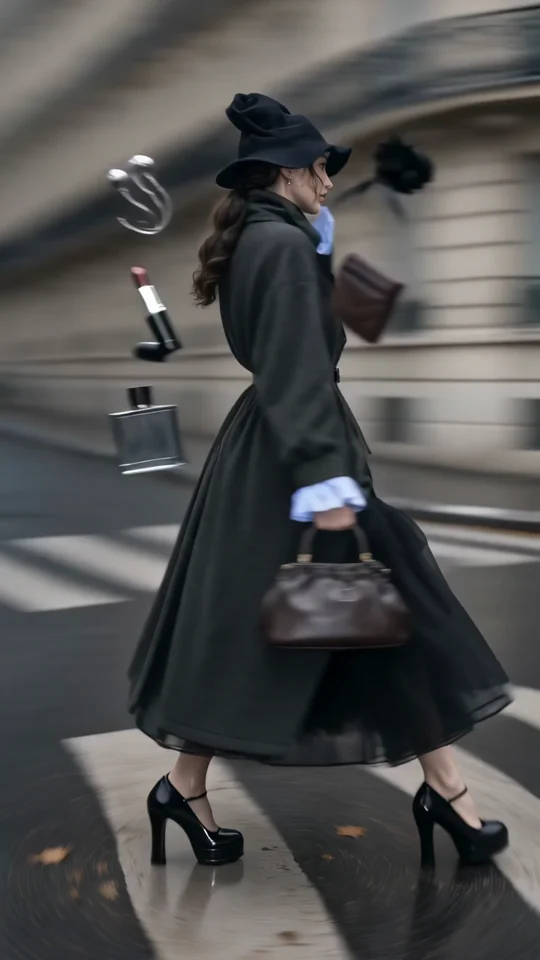
Style Spin
Follow the turning outfit from head to hem. Check the space that the vertical frame leaves around the garment.
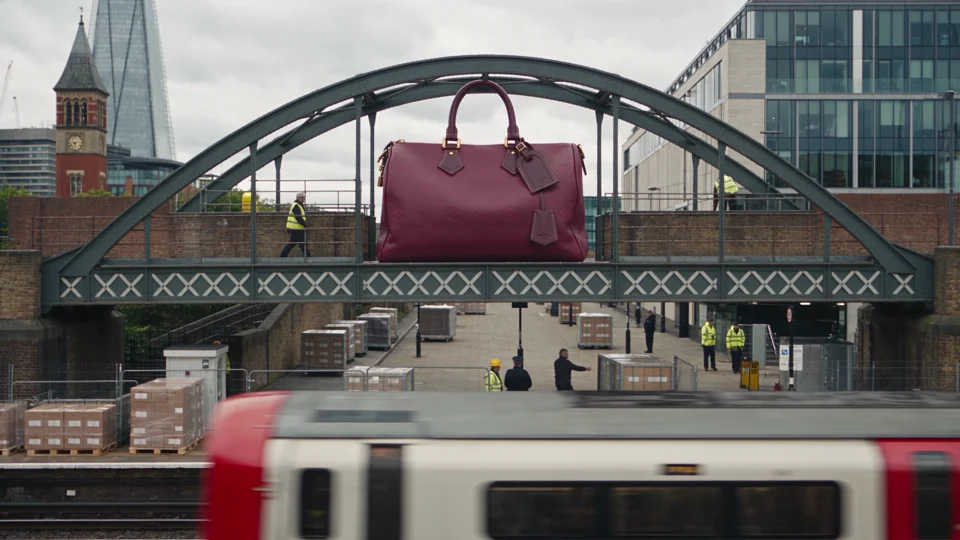

Product World
Compare the handbag spanning a bridge with the same bag in the studio. Its outline makes it recognisable at both scales.

Behind the Shoot
Watch the model turn the sunglasses toward the camera. The frame keeps the accessory clear of the edges.